Live-streaming (church edition)

Since the COVID-19 ban on gatherings of people more than 10 people, churches have moved to house churches and live-streaming. I assisted my church in getting setup to live-stream our services. Some people have asked about how to do this, so here’s a basic guide. (Note: this is designed for fairly low-tech churches.)

(note: this is a work in progress. More images coming soon)

Camera:

The easiest way to achieve good sync between sound and picture is to feed the audio directly into the camera. This insures that picture and sound are synchronized and both contained in the HDMI feed. It also saves you from having to deal with delaying one or the other in software.

This requires a camera with professional line level inputs. I used an older Canon XA-10. Canon, JVC, and Sony all make suitable models in the $1200 – $1400 range.

For ease of cabling, keep the camera close to the streaming computer and your audio mixing console. HDMI can only run over short distances.

Sound:

Sound is vitally important. Do not rely on the built-in mics of camera – take a feed from your audio console. This will give clear, intelligible speech. For music you will probably need to add mics for things that are largely acoustic and not typically amplified (e.g. drums). Or a pair of room mics. Just make sure these are close to the musicians (not by the audio console) or else the delay will be distracting.

On your audio console, use a separate auxiliary mix for the stream feed. Start with post-fader sends, with each at unity gain. This will make the mix match the sanctuary sound – even as the audio engineer moves faders. You can also spread things out in stereo (assuming your PA is in mono as it should be). Since there will be no congregation, you can run the PA quieter than normal if needed and the audio engineer can focus on the livestream mix.

Connect the line level output of the auxiliary mix to the line inputs of your camera.

It is a great idea to record a rehearsal and listen back and make modifications to the livestream auxiliary send.

Computer interface

There are many ways to get the picture (and sound) into the computer. Blackmagicdesign makes several. If the camera output is HDMI, a simple HDMI to Thunderbolt interface works (BMP UltraStudio Mini Recorder). Or you can get something like the web presenter, which mimics a webcam. But we’re using OBS software for this as well as other things (more below).

Download and install the driver. Connect your camera to your streaming computer via this interface.

OBS:

OBS ( is open source cross platform software that is extremely versatile.  It can gather together many sources (camera, ProPresenter, Image files, etc) and stream them to one destination.

Restream.io

If you’d like to stream to more than one destination, sign up for an account with Restream.io. In your reestream account, sign into all your services (FacebookLive, YouTube, etc). Then set the OSB stream settings to Restream.

OBS setup

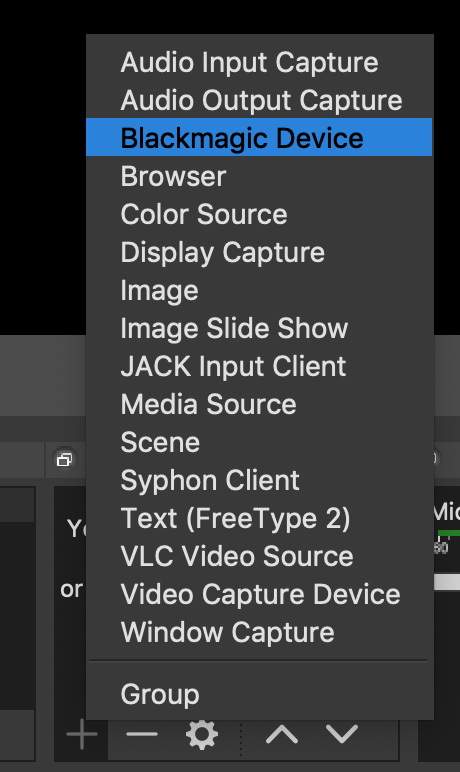
In the Stream section of OSB, add a device with the ‘+’ button.
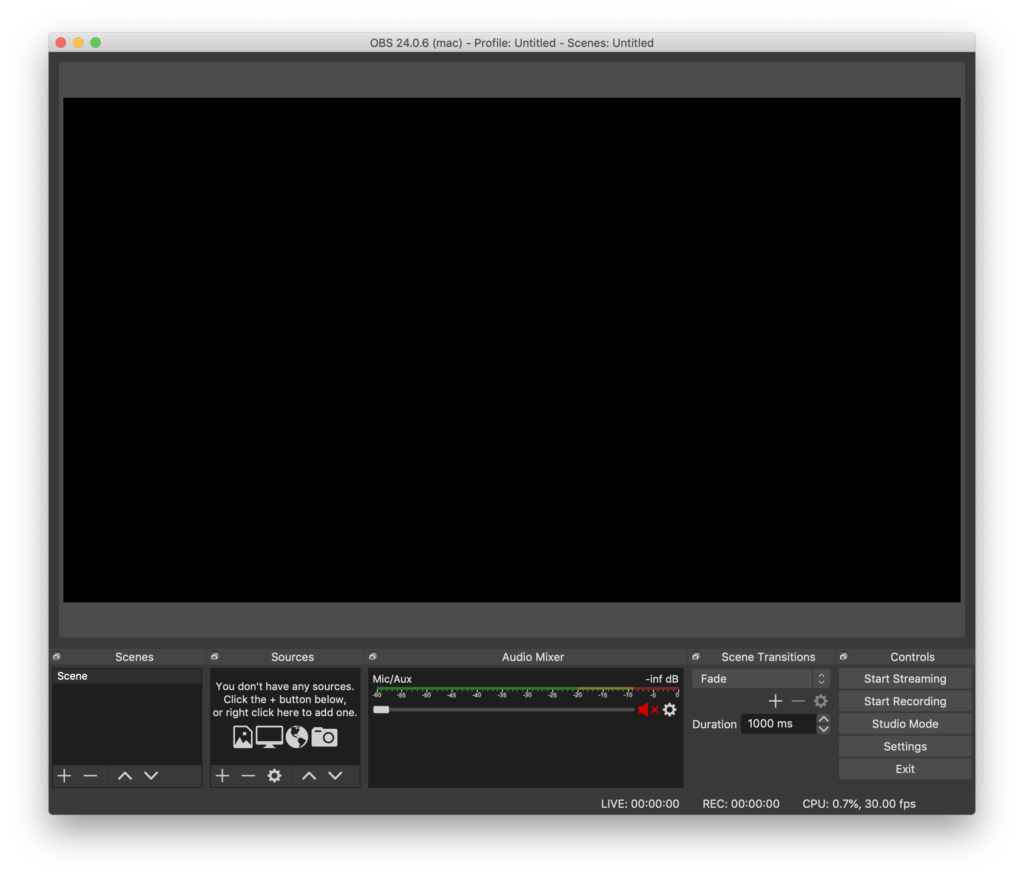
In the pop-up, select your device (e.g. Blackmagic Device). This will not show up if you have not installed the driver.
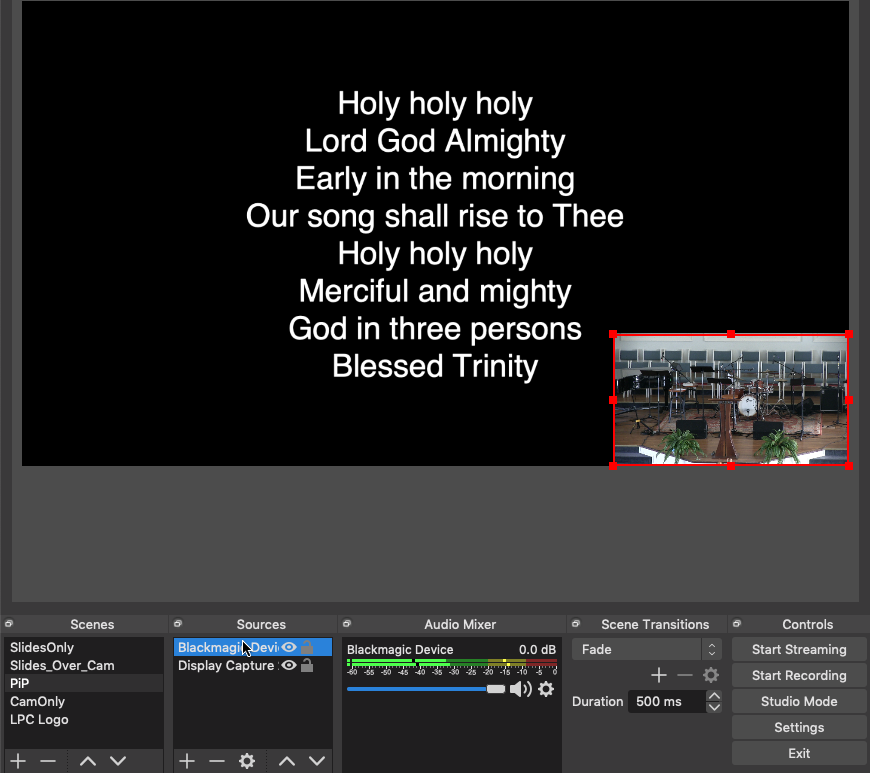
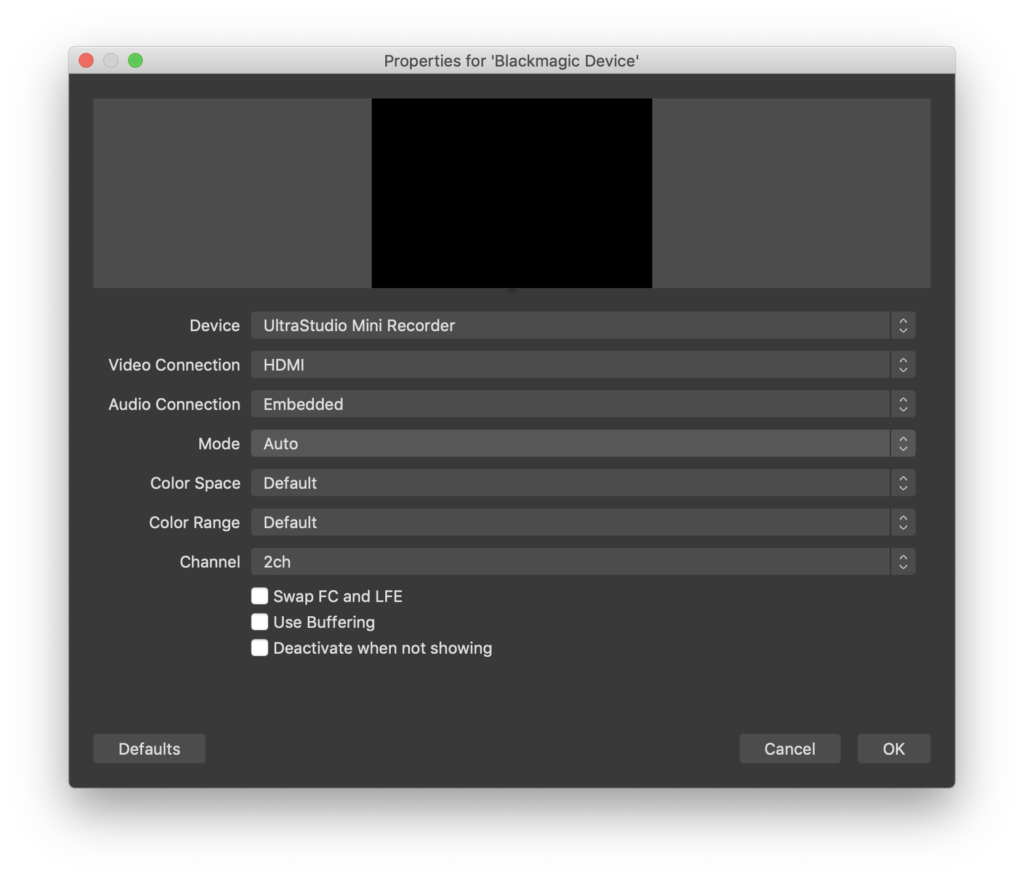
Choose the Device (i.e. UltraStudio Mini Recorder) and select the video input (i.e. HDMI). You should see video in the OSB window. Use the red outline handles to size the video on the ‘canvas’ (if you want to make it smaller for PiP, for instance)
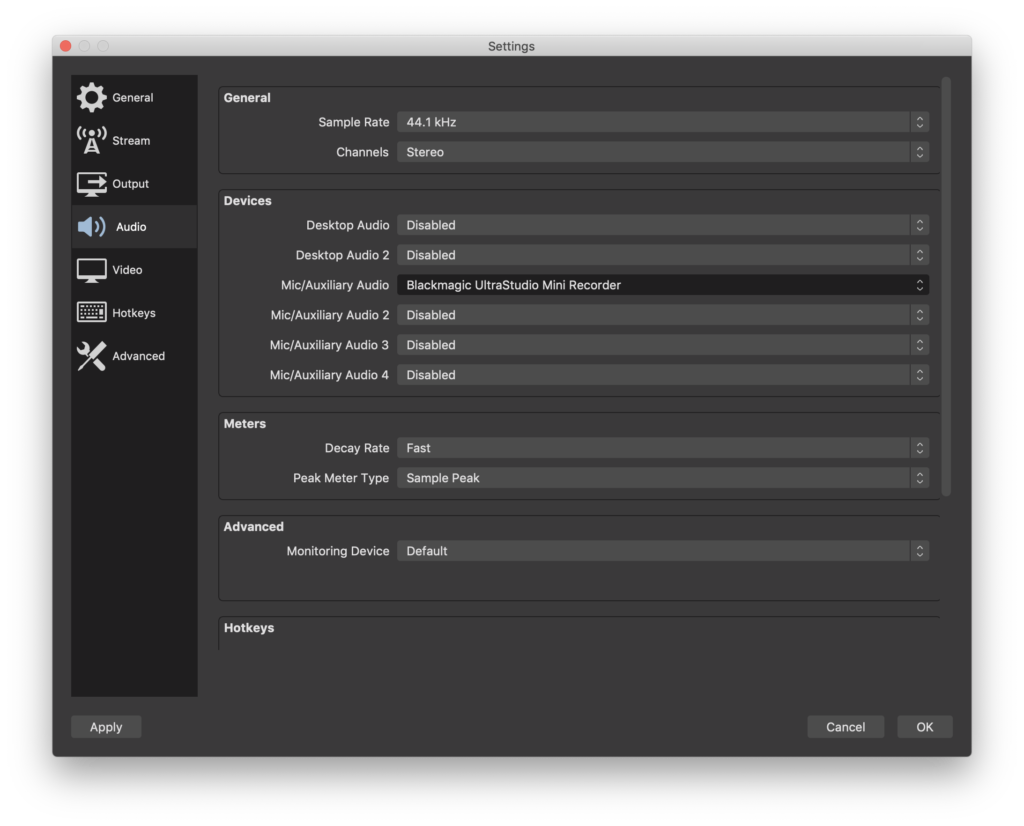
Open the settings and choose the audio tab. Set one of the Mic/Aux audio to your device. All the rest should be disabled. The video tab allows you to set the screen size (resolution) of the canvas and the output of the stream. We’ll get to the stream tab later.
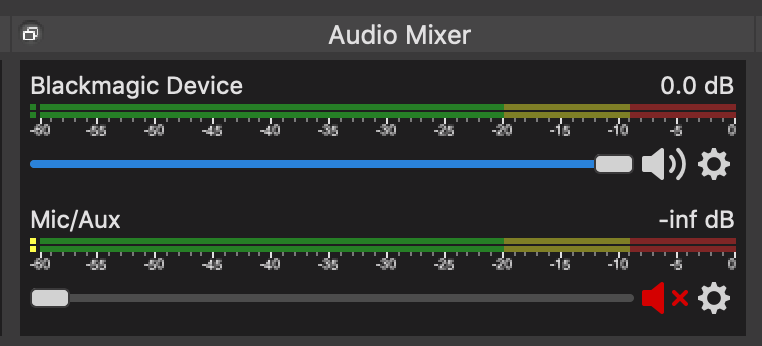
In the audio mixer at the bottom of the canvas, be sure to mute the Mic/Aux. This will prevent your computer’s built-in mic from going out on the stream.
Stream setup

Stream setup to various services is similar. I’ll explain Facebook Live streaming. On your church’s FB page, select Live Video. At the top choose Connect. Be sure to select “Use a secure connection” and “Use a persistent key”. Copy the persistent key to the clipboard with the copy button. On the right you can name, schedule and change settings for your stream.
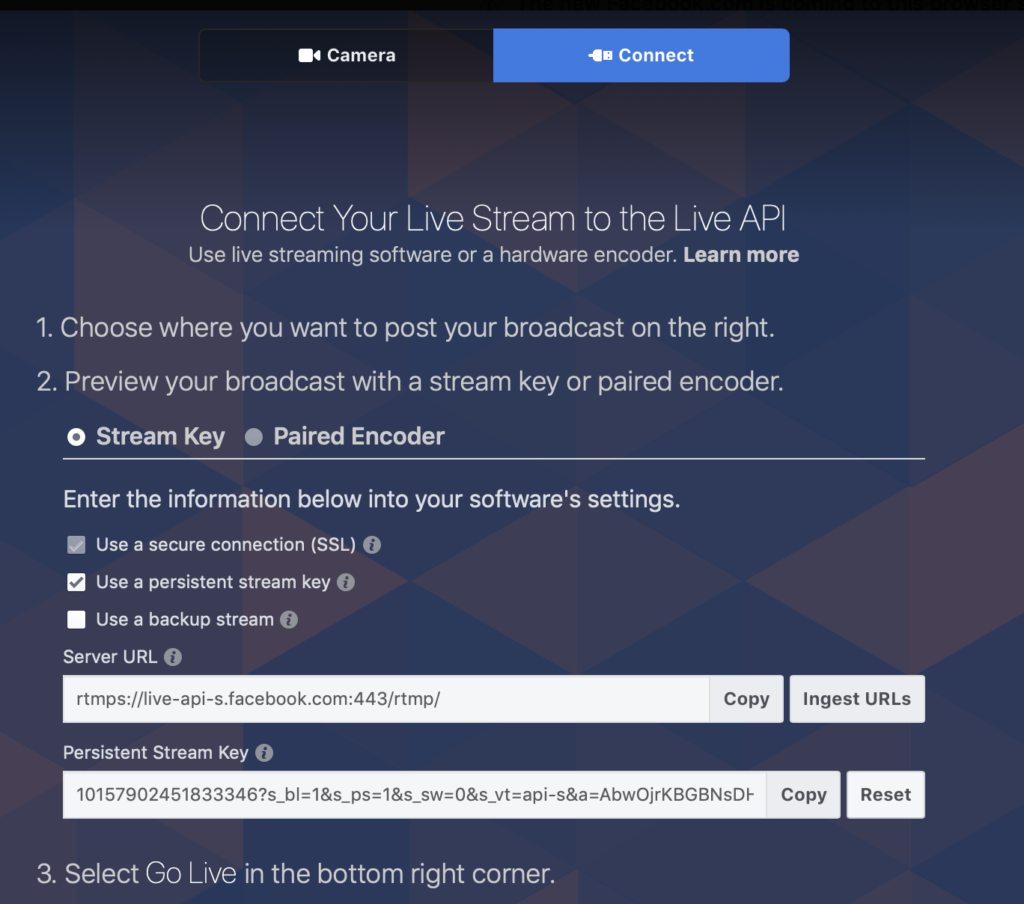
In OBS settings, go to the stream tab. Choose your service from the pop-up and paste the stream key that you copied in the previous step.

In the bottom of the OBS canvas, click start streaming. Go back to Facebook and you should see some stream specs across the bottom. Click Go Live in the bottom right,

Lyric/Slides

OBS provides many options for combining live video with lyrics/slides. We use ProPresenter, but as long as the software is on the same computer and outputs to a second display any software will work. Lyric overlay requires a solid color background. White text on black background works best.

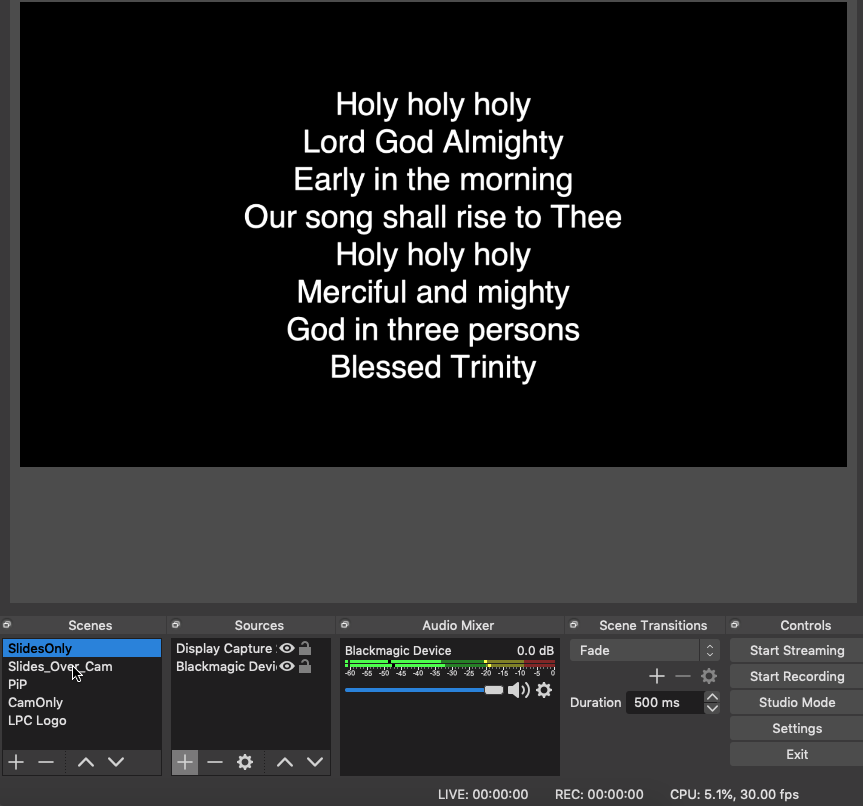
Add another source – this time Display Capture. In the display pop-up, choose the second display.

If you want to have Picture-in-Picture, select the video source and use the red handles to make it smaller and place it where desired.

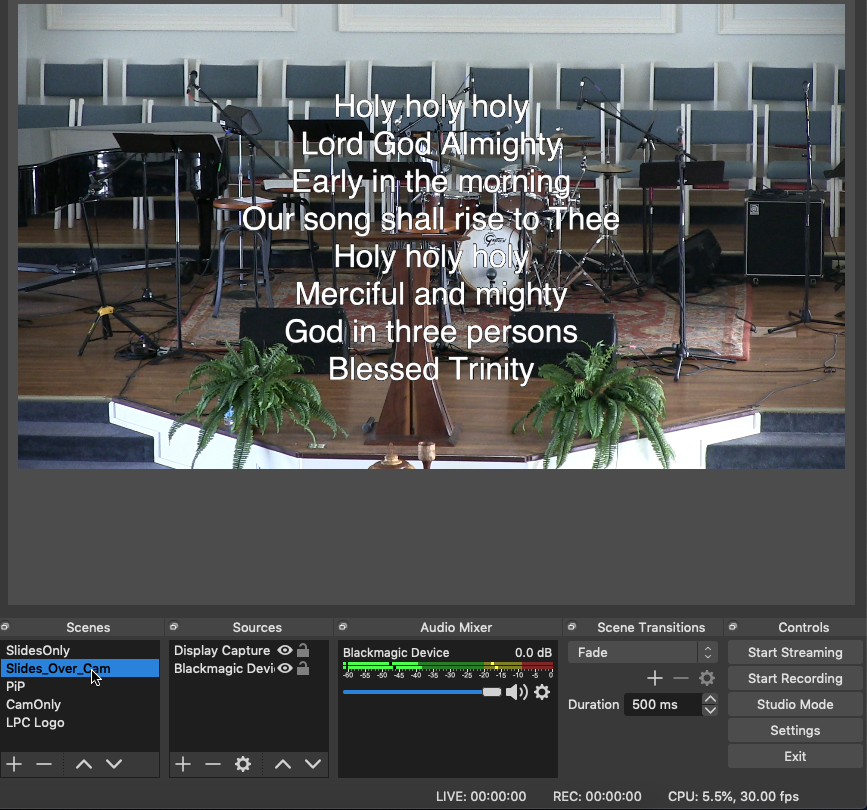
If you want overlay, right click the Display Capture source and choose filters. Add (using the ‘+’ button) a Color Key filter. Select ‘Custom Color’ Key color type and select the color to match your slide background (black in this example)
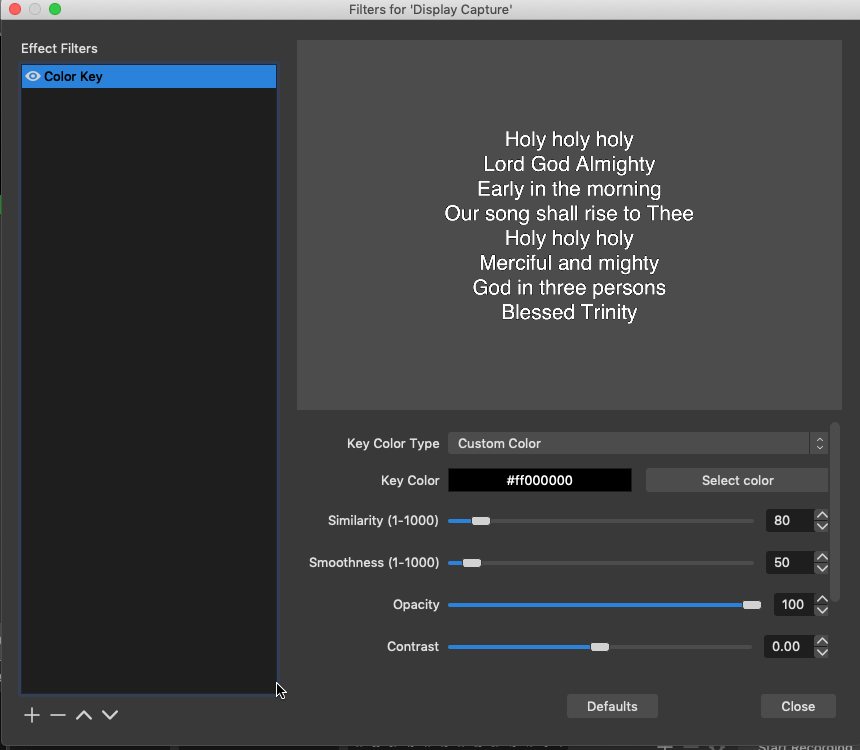
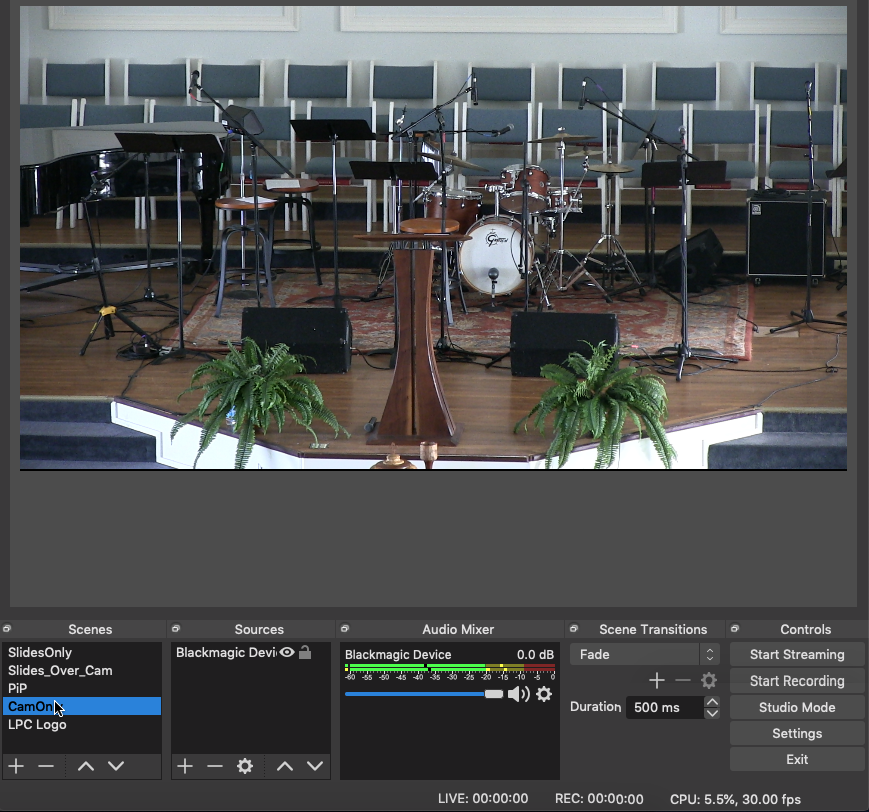
OBS allows you setup various ‘scenes’. Each can have it’s own arrangement of sources. For our church I created 5:

  • Camera only
  • Slides only
  • Slides over-layed over live camera
  • Picture in picture (small video in the corner of full slides)
  • Logo only

The order of inputs in the source window determines which appears in the front. Use the up/down arrows to change the order. Select a source to modify it’s size, position, and crop.

Important! – Even if you don’t need the live video feed (as in the slides only scene) be sure to include it and just move it to the background. It is the source of the audio, so you definitely don’t want it to disappear.
SC Philharmonic Livestream

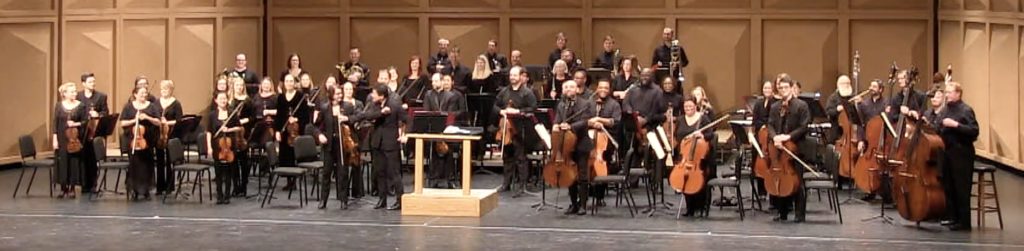
Due to the COVID-19 public assembly restrictions of March 2020, the March 14 South Carolina Philharmonic Masterworks concert was performed without an audience. I pulled together a collection of gear at the last minute to livestream the event. These are not the ideal hardware, software, or production choices, but with little time and no budget, we made it work.

Below are some specifics of what was used for this live-stream, as well as some recommendations.

Cameras:

I used higher end camcorders (~$1k), but not pro TV cameras ($15k) that connected via HDMI to the switcher.

HDMI can only run over short distances, so I was limited in my camera placement.  We were able to source one ‘HDMI over CAT5’ setup that allowed us get Cam2 into the audience left position so we could get a shot of the pianist’s hands.  I would have loved another camera on stage with a shot of the face of the conductor.
SDI is definitely the better way to go (allows long cable runs to cameras), but cameras with SDI support start @ $2k. There are also HDMI to SDI converters, but I did not have any available.

  • Cam1: Canon XA-10, audience center, static wide-shot of stage
  • Cam2: Canon HF G20, audience left, piano keyboard or conductor
  • Cam3: Sony HXR-NX5R, in booth audience right, changing shot

Switcher

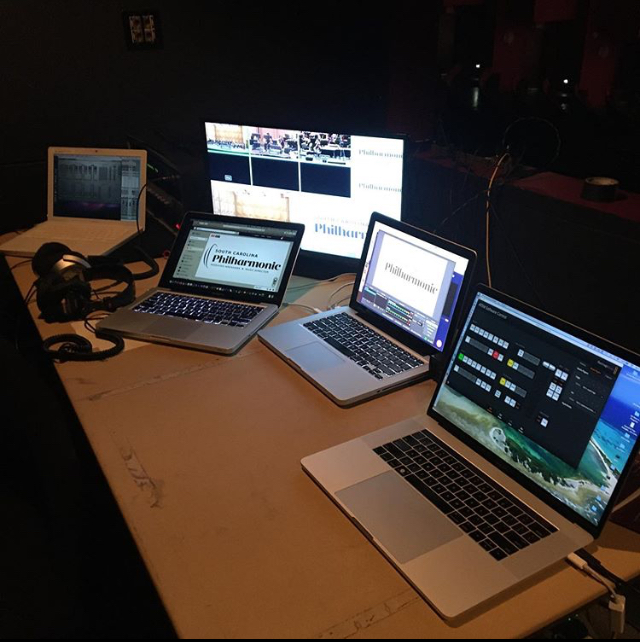
I used an old BlackMagic ATEM Television Studio to switch between the 3 camera with dissolves. This is a software controlled 1RU hardware switcher with 6 inputs. (control software can been seen on Mac Book Pro in the foreground). BMD have many newer & better versions of switchers and streaming devices.

The ‘multi-view’ about of the switcher (seen on the monitor behind the Macs) allowed me to see all cameras at once. The switcher software also allowed me to import image files as a switch source, so I could display a logo before and after the concert. The switcher output connected to the streaming Mac (13″ MBP) via an HDMI to Thunderbolt converter.

Ideally, I would have also liked to have had a computer as an additional switcher source.  This computer would have played prepared content (sponsor thanks, promo videos, interviews, etc.) to run before, after, and during intermission.  We did run a 30 second video welcome from SC Phil executive director Rhonda Hunsinger before each half.

Audio:

Recording/live-mixing rig was Metric Halo MIO2882. Software control and recording happens on a 2006 (yes, you read that correctly!) white Mac Book. The sound is primarily a decent main pair, with supplemental mics for solos and mics used for talking. Since classical music is so dynamic, level control (both with compression/limiting and manual gain riding) is very important.

  • Main array: DPA 4006 A/B pair suspended above conductor
  • Woodwind spots: Audix MB129 hyper-cardioid
  • Piano spots: Neumann KM-184 near-coincident pair

Sync:

The easiest way to achieve good sync between sound and picture is to feed the audio mix into one of the cameras (requires a camera with professional line level inputs). For this event I actually used a digital (AES) connection between the Metric Halo MIO2882 and the BMD ATEM TV Studio. Sound was ahead of picture, so I corrected the sync by adding an audio delay in the OBS software.

Double and triple check sync in rehearsal, both to streaming software and on the stream itself.

Streaming:

OBS is open source cross platform software that is extremely versatile.  It can gather together many sources (switcher output, pre-show video, etc) and stream them to one destination. We used Restream.io to stream to both FacebookLive and YouTube at the same time.

Interaction with the audience is key.  Have a knowledgeable staff member host the stream. They can announce pieces/movements, paste in excerpts from program notes & bios, answer audience questions, and relay feedback to streaming team.

Communication:

For this event, only one camera was non-static. This camera was in the booth with us, so communication about framing of shots (and when the camera was not live and it was okay to move) was easy. If you move to having roving/distant cameras, you’ll need to add communication (ClearCom headsets) so the director can tell the camera operators what to focus on and when they are free to move.

Personnel:

Fort his event, we had 3 people. Steve Borders (Technical Director of the Koger Center) and Jeff Francis handled all technical aspects of sound, cameras, and streaming, while Kristin Morris (SCPO Marketing & Communications Director) hosted the streams and interacted with viewers.

Ideally, the roles would be:

  • director
  • switcher
  • audio mixing
  • camera operator (one for each non-static camera)
  • stream host

The director (person calling the ’shots’) should be familiar with the music, so that – for example – before the oboe solo in the 3rd movement of Schumann Symp No. 2 he can instruct the camera op to get a close up of the principal oboe and then instruct the switcher to change to that shot right before the oboe solo enters.  We managed a bit of this on Saturday, but much was by instinct rather than pre-planned.

Washington Post article

Rhonda Hunsinger, SC Philharmonic executive director, spoke to the Washington Post about the concert. Read to the end of the article here.

Reverb guidelines

In general, DO NOT use reverb as an inline effect (a reverb as a plug-in on an audio track).

Instead, use an Aux Send and Return in a parallel configuration.

Use an Aux to send all the desired channels to an internal bus. Create an Aux track and set the bus as its input. Put the reverb plug-in on the Aux track.

Benefits:

  • more efficient use of computer processing
  • set level of dry sound independently and then add reverb
  • easier to control level of reverb on a large fader – don’t need to open any plugs-ins to make changes
  • since several tracks are mixed before going through the reverb, they sound like they are in the same ‘room’.

In general, use no more than 4 reverb plugins per mix. These could be a short bright plate, medium room, longer hall, and a special effect reverb.

This will help keep your mix from getting muddy and unclear.

Automation

Static mixes – where the faders sit at the same level throughout a song – will never sound polished or finished. The balances between song elements must be constantly adjusted to focus the listener.

Lead vocals are the place where micro adjustments came make a huge difference between a so-so mix and one where the voice sits right ‘in the pocket’ – never lost, but never out of the texture.

Ride those faders!

Using two main arrays

“I like some aspects of one array and different aspects of another. Can I combine two different main arrays?”

Don’t mix main arrays
In general, when using classical techniques (main array with spots), don’t combine main arrays – this causes comb filtering/phase issues because of the difference in time of arrivals to the two arrays.

If you want to combine, say, the warmth and spaciousness of an omni-based spaced AB array with the crispness of a cardioid-based XY, you need to consider these a 4 mic array and place the mics with that in mind.

(In the case of the 4 mic array, the cardioids in the XY would be at a similar distance or even closer than the AB, rather than 1.7 times farther away, as distance factor might indicate.)

‘Reflections’ on horn recording

Bear with me – the pun in the title will become clear as you read this.

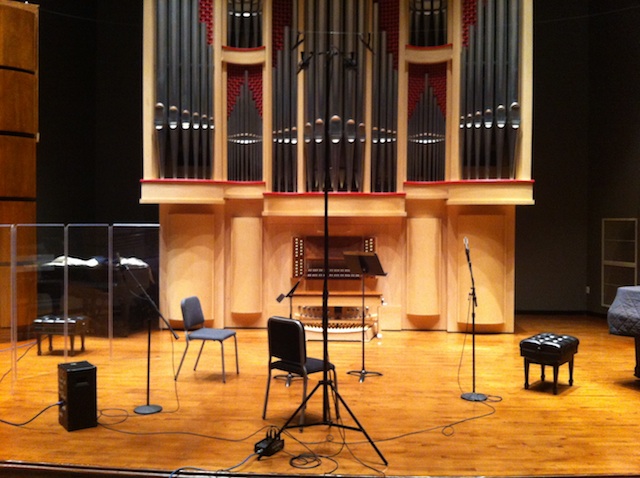
I have been working sporadically over the past few months on a recording with a trombonist. The project consists of works for duos – trombone and ‘something else’. Each pair recorded in the same hall, but months apart. The hall is a small recital hall ideally suited for solo and chamber classical music, so it was a good fit. Up to this point, the other member of the duos have included marimba, trumpet, and soprano voice. Each of these has unique recording challenges, but they all have similar projection – generally forward.

One of the common challenges on a project like this one is to insure that all the separate sessions come together to make a cohesive sounding final product. In the hopes of having a consistent sound, I use the same main array (spaced pair of DPA 4006 omni condensers) for each session.  The positioning was similar, but individually adjusted to optimize the sound for each duo.

Enter the horn.  The French horn (though there is nothing French about it).  This strange and wonderful beast has evolved from hunting and ceremonial horns made from – well, horns. Animal horns. One of the unique features of the horn is its projection.  The bell of the horn points to the rear, on the player’s right side.  In a typical concert hall, the horn player’s sound bounces off the back wall and reflects to the audience.  That is how all of us (composers, players, engineers, and audience) are used to hearing a horn – never direct sound, always reflected.

Back to the recording at hand.  I prepped the stage in anticipation of the musicians’ arrival. The trombonist and I had discussed the stage layout briefly via email before the session, so I had a general idea of where they should be.  Trombone on the right (stage left) where he had been in all the previous sessions.  Horn on the left (stage right).  Both of them facing the center of the audience area. I setup the stage so that the performers would be far upstage – this would provide enough reflective wall behind the horn.

However, when the duo arrived, it was clear they had a different arrangement in mind. They had been practicing sideways, nearly facing each other on the stage.  In this position, the bell of the horn did not aim at the back wall. Nor was there any side wall to speak of.

First judgment call – should I ask the players to rearrange to work with my plan, or work with what they were used to?  I knew that making them conform to my setup would throw off their communication and potentially affect their performance.

Music comes first.

I’d rather have a less than stellar recording of a great musical performance than the other way around, so comfortable, communicating musicians are of prime importance.

Of course, I still need to provide a stellar recording, so now I had a new concern – would the horn sound appropriate?

As they made a quick test recording my worst fears were realized. The trombone both sounded great and matched the sound of the pieces it was going to coupled with. The horn, however, was another story. Much as I had worried, the horn sounded distant and diffuse. Without any surface behind it to reflect the sound, the horn might as well have been in another room.

Test Recording

What to do? I quickly ran down my options:

1. leave the setup as is, and rely on a horn spot mic to balance the sound.

I hated to do this, as I knew this had little hope of matching all the other selections on the project. The spot mic would have to be behind the horn and would pickup an unnatural sound.

2. try a different arrangement of the musicians on stage

This option was no better. I’d already considered and rejected that option. To begin rearranging at this point could quickly send the session down an unproductive path.

A 3rd option came to mind.  What I needed was a wall or other reflective surface behind the horn. I thought about rolling the grand piano behind the horn and raising the lid, but a piano sits too high off the floor.  Then it came to me…a drum shield. I brought in a 5 panel plexiglass drum shield and placed it behind the horn.  Time for another test recording.

Recording with reflector

Success.  The trombone and horn sound matched.

Now that the musicians and main array were set, I placed the spot mics.  These were two Royer R-122 active ribbons.  The trombone spot went in front and to the side, with it’s null aimed at the horn.  The horn spot sat next to the horn, aimed at the reflector. It’s null aimed at the horn, so as not to pickup the direct horn sound.

All is not lost…

Every once in a while it happens. (More often if you would believe Mr. Murphy)

A collection of mistakes, failures, and oversights that conspire to destroy the only recording of an event.

Here’s the story…

I sent a student engineer across town to record one of our school orchestras performing their spring concert.  Simple stereo archive recording of a live event. Near-coincident pair above the conductor to a flash-based portable recorder (and a backup). What could possibly go wrong?

Well, everything.

First of all, the backup.  While I’d love to have redundancy for the entire recording chain, in reality that is pretty difficult to do. So we do what we can. If the power goes out, the musicians can’t see, so the concert will probably stop right along with the equipment. If one of the mics, cables, or preamps goes bad, I can always use the one working side and create a pseudo-stereo recording with post-processing. (More on that in another post!) The one place I always insist on redundancy is in the recorder. Maybe this comes from my pre-digital roots, where tape was the weakest link. Maybe it comes from the fact that we have lost confidence monitoring in modern digital recorders. Or from my experience with various digital tape formats and the limitations of error correction.  Or maybe from what I know of human nature and how easy it is to forget to hit record. Regardless of the reason, this is where redundancy is required, even if it is a stereo backup of a multitrack recording.

But not this day. My team happened to be recording 9 events at 5 different locations, so equipment was running low. This meant I couldn’t send a backup recorder. “Oh well,” I thought, “I haven’t had any reliability problems with this recorder since I purchased it, so it will be fine.”

Lesson one: always run a backup.

So the student sets up, gets levels, and begins recording several minutes before the concert starts. Everything is going smoothly until – in the middle of a performance – someone walks by and kicks out the power to the recorder. The student quickly replugged the power, but had to reboot the machine and restart recording. The phantom power (being supplied by the recorder) also had to return to powering the mics. All-in-all, about 9 seconds of the concert were missed.

All this could have been avoided if I had followed another rule of mine – keep charged batteries in the portable recorder. Battery powered recorders (and buss powered audio interfaces) add another layer of redundancy, since they will keep on going even if the musicians can’t see. But alas, I had failed to charge the batteries ahead of time.

Lesson two: always charge the batteries.

Lesson three: make sure all cables are trip proof.

I was certainly not pleased when I heard what had happened, but I prefer to look forward into solutions than backward into blame. Unfortunately, I was in for one more surprise…

A corrupted audio file.

When the power was pulled from the flash recorder, it was in the middle of writing to the SD card storage and never had a chance to close the audio files. No audio workstation or general audio software could recognize or open the file from the first part of the concert. 9 missing seconds is one thing – over 30 minutes is quite another!

Audacity to the rescue.

As I was beating my head against a wall trying to get something to open the file, I remembered a feature of Audacity – raw data import.  Besides being able to import audio or MIDI data, open-source Audacity can look at and import the raw data from any file.

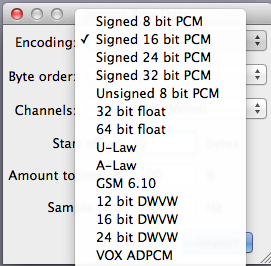
Since it only looks at the raw data (and not the header), Audacity has no idea what the data is supposed to be. In the case of an audio file, these are things like:

  • encoding format
  • mono or interleaved
  • sample rate
  • bit depth (samples per bit)
  • byte-order
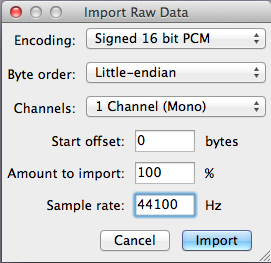
When trying this recovery process, it is helpful to know as many of these things as possible. Standard pro audio formats (such as WAV, SDII, AIFF) will be PCM, either 16 or 24 bit. Some systems may use floating point, either 32 or 64. Many of the other options refer to telecommunications formats.
Byte order will typically be little-endian, but for the overly curious and computer nerds in the audience, more info can be found here.
I knew the file I was trying to resurrect was a 16 bit, 44.1kHz WAV file. Data is organized into 8-bit bytes, but Audacity does not know where to begin with a header less, corrupt audio file. Since audio typically uses longer word lengths (16 or 24 bit), there are 2 or 3 ways the audio sample can fit into 2 or 3 bytes. This is the start offset setting in the import window and finding the correct setting is unfortunately a trial and error process for each corrupted audio file. The start offset will be either 0 or 1 for 16 bit files and 0, 1, or 2 for 24 bit files.
Try each setting starting with 0. The resulting imported audio will either sound like distorted garbage, or…

…it will be the audio you thought was lost forever!

Once you find the correct settings, simply save the audio as a new wave file (or whatever format you need).

Big problem solved – the audio from the first half of the concert was back. But what to do about the missing 9 seconds? We got lucky, as they were part of a musical repeat. The missing seconds were cloned into place. Admittedly not a true archive of the event, all-in-all a satisfactory outcome.


USC Wind Ensemble Recording

Recording Sessions:

The University of South Carolina Wind Ensemble, under the direction of Dr. Scott Weiss, utilized Fall break (October 20 – 23, 2011) to record a program of Leonard Bernstein compositions for a CD to be released on Naxos classical music label. The ensemble of nearly 70 students performed on the Koger Center stage during two three-hour sessions each day.

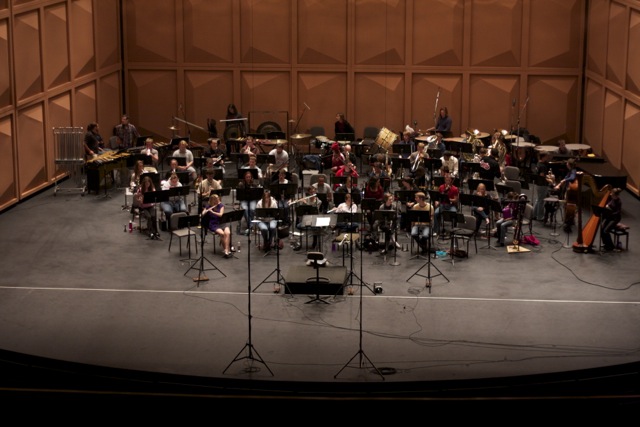
Wind Ensemble on stage

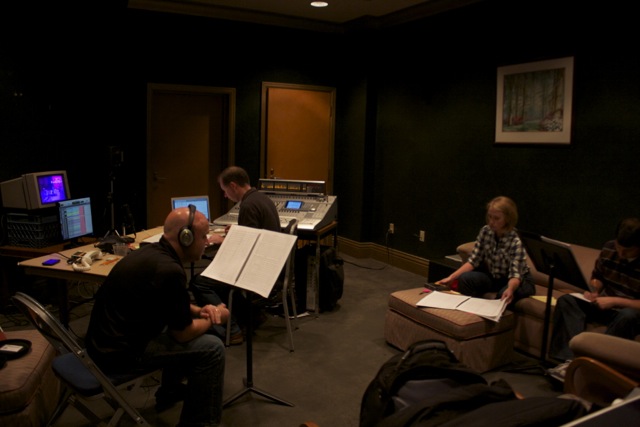
A temporary control room was setup in the Koger Center green room.  The ProTools HD system and Tascam DM-4800 digital console were moved from USC School of Music Studio C. The engineer (Jeff Francis) and Wind Ensemble graduate assistants monitoring via Genelec 8020s while the producer (Paul Popiel) listened on headphones. In addition to talkback, snoop, and private telephone audio communications, a video camera and monitor allowed those in the control room to watch the conductor onstage.

Control Room

Though the overall sound was primarily captured by a stereo pair of main microphones, for the sessions a total of 26 microphones were used. These included the main pair, flanking and ambient mics and 20 spot mics on the various sections and individual instruments of the ensemble. A total of 487 takes were recorded – creating over 12,000 sound files totaling nearly 130GBs!

Post-production:

Scott Weiss, working from rough mixes of the takes and notes taken during the recording sessions, choose the takes to be used. Selections were marked directly on the score. After the initial round of edits, a handful of additional corrections were made and the mix was adjusted to bring out certain musical phrases and solos.

The CD will be released on the Naxos classical music label later this year.

Creviston / Gruber Columbia Sessions

Released: 3/13/12


CD ArtworkRecorded: June 1 & 2, 2011

Performers

  • Christopher Creviston, saxophone
  • Hannah Gruber, piano

Works Recorded

  • Poulenc: Flute Sonata transcribed for soprano sax
  • Villa-Lobos: Fantasia
  • Delvincourt: Croquembouches
  • Bolcom: Concert Suite
  • Chang: Two Preludes

Recording setup

Microphones Pattern
Spaced AB Pair DPA 4006 Omni
Saxophone Royer R-122 Bi-directional
Piano NOS pair KM-184 cardioid

SC Philharmonic – Rogers Double Concerto

November 13, 2010

Commissioned by the South Carolina Philharmonic, John Fitz Rogers’ Double Concerto was composed for the piano duo of Marina Lomazov and Joseph Rackers.

Recording a double piano concerto is a difficult task with many unique challenges. Since the pianos nestle together, there is very little physical room to place microphone stands. Also, the outer piano has the lid removed, so it projects much differently from the inner piano.

Performers

  • South Carolina Philharmonic
  • Morihiko Nakahara, conductor
  • Joseph Rackers & Marina Lomazov, pianists

Recording setup

Instrument Mic Technique Microphones Pattern
Orchestra Spaced AB Pair DPA 4090 Omni
Woodwinds Audix MicroBoom MB1290HC Hypercardioid
Pianos (both) Spaced AB Pair DPA 4090 Omni
Piano 1 Neumann KM-184 Cardioid
Piano 2 Neumann KM-184 Cardioid